• ผลิตภัณฑ์
  • ชุมชน
  • ตลาด
  • โบรกเกอร์
  • เพิ่มเติม
เริ่มกันเลย
  • ศูนย์ช่วยเหลือ
  • /แหล่งความรู้
  • /
  • /ฉันมีปัญหาการใช้งาน/คำถาม เกี่ยวกับการซื้อขายบนกระดาษ
  • /Multiple take profit and stop loss levels
ในหน้านี้
Key detailsKey detailsSetting quantitiesSetting quantitiesSaving and editingSaving and editingUsing presetsUsing presets

Multiple take profit and stop loss levels

This feature allows traders to add multiple Take Profit (TP) and Stop Loss (SL) levels to an order or position. This is used to customize position management strategies and automatically exit positions in parts at predetermined price levels.

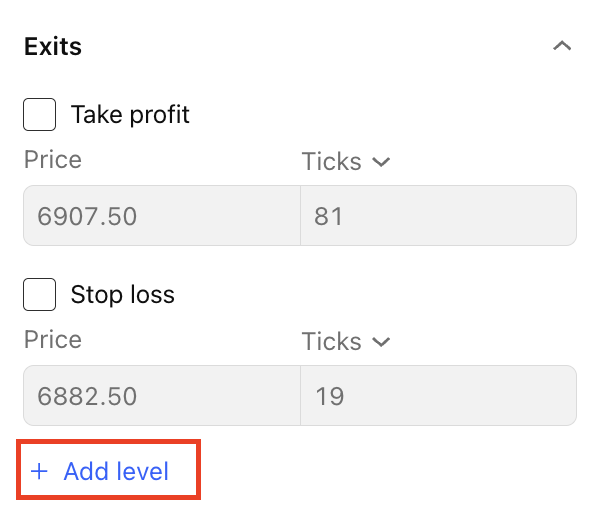
To add multiple exit levels to an order, click the "Add level" button in the Exits section of the order ticket.
In the dialog that opens, set the quantity and price for the Take Profit and Stop Loss. To add another level, click "Add level" within the level configuration dialog. Please note that in Paper Trading, you can add up to 4 exit levels.
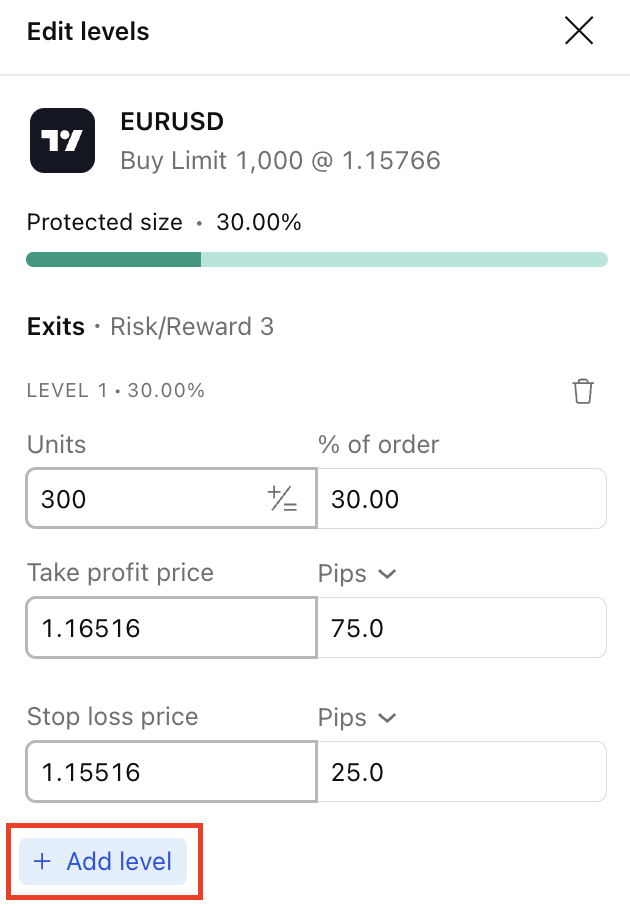
Key details

Please be aware that, unlike regular bracket orders, multiple exit levels in Paper Trading always come as a pair, which includes both a Take Profit and a Stop Loss.

Therefore, if you wish to use a strategy with one Stop Loss and multiple Take Profits, simply set your Stop Losses to the same price level.

In the multiple Take Profit and Stop Loss configuration dialog, you can remove a specific level by clicking on the trash can icon. Clicking the button for a configured level allows you to edit its parameters.
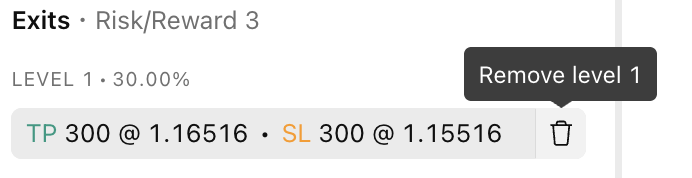
Setting quantities

When setting the quantity for each exit level, pay attention to the infographic, which shows the percentage of the main order's quantity that is covered by the exit levels. Here, you can also view the quantity and price of the main order.
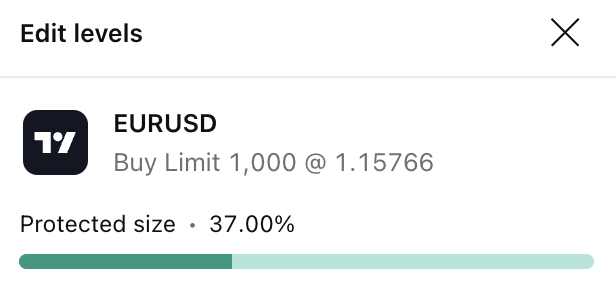
Next to each level, you will also see the percentage of the main order's quantity used in that specific exit level. When this exit level is executed, the position will be closed for the corresponding percentage of its total quantity.
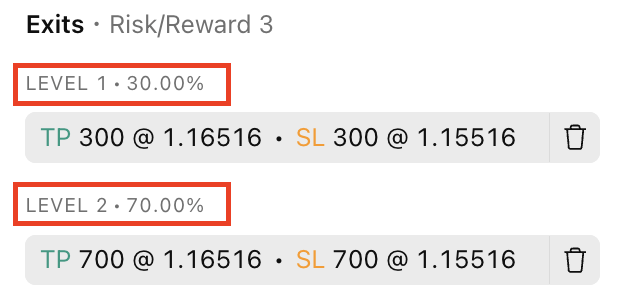
Please note: In Paper Trading, any portion of the quantity in the exit levels that exceeds 100% will not be executed.

Saving and editing

Once you have finished configuring the exit levels, click the confirmation button to save the configuration and return to the order ticket.
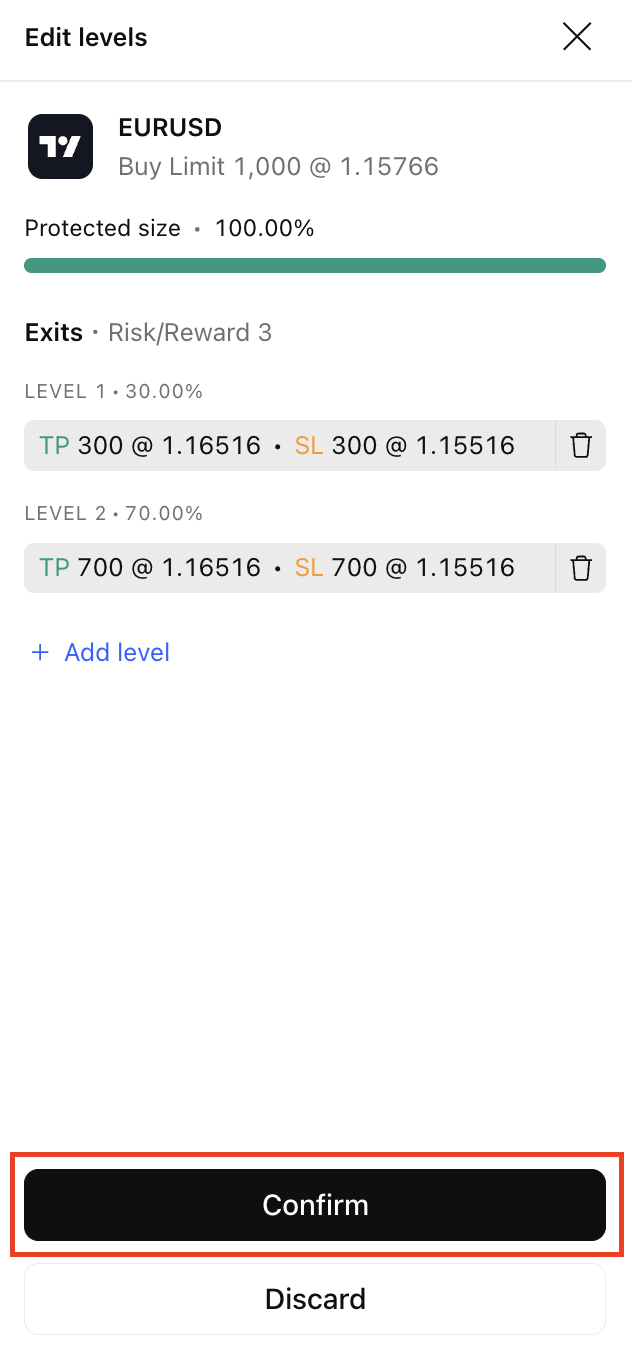
In the order ticket, you can now submit the order with multiple exit levels. You can also click the button for the configured exit levels in the order ticket to enter editing mode for the levels.

Please note that once the levels are placed, deleting one part of the pair (e.g., the Stop Loss) will result in the deletion of the other part of the pair (the Take Profit). Execution of one part of the pair will also result in the cancellation of the other part of the pair.

Using presets

Please also keep in mind that there is an excellent way to use your exit strategy while placing orders very quickly.

Once configured, the exit levels can be saved in an order preset along with the other order parameters. This will allow you to quickly create orders with multiple exit levels.

What is commission per contract in Paper Trading
The Leap คืออะไร

สร้างขึ้นโดยมนุษย์

เลือกข้อมูลตลาดที่ให้บริการโดย ICE Data Services. เลือกข้อมูลอ้างอิงที่ให้บริการโดย FactSet. Copyright © 2026 FactSet Research Systems Inc.Copyright © 2026, American Bankers Association. CUSIP Database ที่ให้บริการโดย FactSet Research Systems Inc. All rights reserved. SEC filings และเอกสารอื่นๆ ที่ให้บริการโดย Quartr.© 2026 TradingView, Inc.

เป็นไปตาม SOC 2เป็นไปตาม GDPR
มากกว่าแค่ผลิตภัณฑ์
  • ซูเปอร์ชาร์ต
ตัวคัดกรอง
  • หุ้น
  • ETF
  • พันธบัตร
  • เหรียญคริปโต
  • คู่ CEX
  • คู่ DEX
  • Pine
ฮีทแมพ
  • หุ้น
  • ETF
  • เหรียญคริปโต
ปฏิทิน
  • ทางเศรษฐกิจ
  • ผลประกอบการ
  • เงินปันผล
  • IPO
ผลิตภัณฑ์เพิ่มเติม
  • กระแสข่าว
  • พอร์ตโฟลิโอ
  • กราฟพื้นฐาน
  • เส้นแสดงอัตราผลตอบแทน
  • Options
  • แผนที่มหภาค
  • Pine Script®
  • MCP Server
แอป
  • แอปมือถือ
  • เดสก์ท็อป
ชุมชน
  • เครือข่ายทางสังคม
  • กำแพงแห่งรัก
  • แนะนำเพื่อน
  • โปรแกรมสำหรับครีเอเตอร์
  • กฎระเบียบการใช้งาน
  • ผู้ดูแลการใช้งาน
ไอเดีย
  • การซื้อขาย
  • การศึกษา
  • คัดสรรโดยบรรณาธิการ
Pine Script
  • อินดิเคเตอร์ & กลยุทธ์
  • Wizards
  • ฟรีแลนซ์
  • ตลาดซื้อขาย
เครื่องมือ & การสมัครสมาชิก
  • ฟีเจอร์
  • อัตราค่าบริการ
  • ข้อมูลตลาด
  • แผนสำหรับของขวัญ
การซื้อขาย
  • ภาพรวม
  • โบรกเกอร์
  • เปรียบเทียบโบรกเกอร์
  • The Leap
ข้อเสนอพิเศษ
  • ฟิวเจอร์ส CME Group
  • ฟิวเจอร์ส Eurex
  • ชุดหุ้นสหรัฐฯ
เกี่ยวกับบริษัท
  • พวกเราคือใคร
  • ภารกิจสำรวจอวกาศ
  • บล็อก
  • ศูนย์ช่วยเหลือ
  • อาชีพ
  • เครื่องมือสำหรับสื่อ
สินค้า
  • ไพ่ทาโรต์สำหรับเทรดเดอร์
  • The C63 TradeTime
นโยบาย & ความปลอดภัย
  • ข้อกำหนดการใช้งาน
  • คำจำกัดสิทธิ์ความรับผิดชอบ
  • นโยบายความเป็นส่วนตัว
  • นโยบายการใช้คุกกี้
  • คำชี้แจงสิทธิ์การเข้าถึง
  • ศูนย์ความเชื่อถือ
  • เคล็ดลับความปลอดภัย
  • โปรแกรม Bug Bounty
  • สถานะเพจ
โซลูชันสำหรับธุรกิจ
  • วิดเจ็ต
  • ไลบรารีชาร์ต
  • Lightweight Charts™
  • ชาร์ตขั้นสูง
  • แพลตฟอร์มการซื้อขาย
โอกาสในการเติบโต
  • การลงโฆษณา
  • การเชื่อมต่อกับโบรกเกอร์
  • โปรแกรมสำหรับพาร์ทเนอร์
  • โปรแกรมสำหรับการศึกษา
ชุมชน
  • เครือข่ายทางสังคม
  • กำแพงแห่งรัก
  • แนะนำเพื่อน
  • โปรแกรมสำหรับครีเอเตอร์
  • กฎระเบียบการใช้งาน
  • ผู้ดูแลการใช้งาน
ไอเดีย
  • การซื้อขาย
  • การศึกษา
  • คัดสรรโดยบรรณาธิการ
Pine Script
  • อินดิเคเตอร์ & กลยุทธ์
  • Wizards
  • ฟรีแลนซ์
  • ตลาดซื้อขาย
โซลูชันสำหรับธุรกิจ
  • วิดเจ็ต
  • ไลบรารีชาร์ต
  • Lightweight Charts™
  • ชาร์ตขั้นสูง
  • แพลตฟอร์มการซื้อขาย
โอกาสในการเติบโต
  • การลงโฆษณา
  • การเชื่อมต่อกับโบรกเกอร์
  • โปรแกรมสำหรับพาร์ทเนอร์
  • โปรแกรมสำหรับการศึกษา
Look FirstLook First